Setup Guide
Get FlashCodes running on your browser and start auto-claiming Stake.com bonus codes. Two quick phases — get your license, then install the extension.
Get Your License Key
Subscribe through our Telegram bot and receive your personal license key in under a minute.
Open @FlashRacerBot
Search for @FlashRacerBot on Telegram or tap the button below.
- Send
/startto the bot - Tap Subscribe or Plans
- Enter your Stake.com username
Choose a Plan & Get Your Key
Pick a plan (starting at $5), pay with crypto, and instantly receive your unique license key.
- Choose your plan
- Complete payment (BTC, ETH, USDT, LTC, TRX)
- Bot sends your license key instantly
Install & Connect
Install the browser extension, add the userscript, and paste your key.
Install Tampermonkey
Tampermonkey is a free browser extension that lets you run userscripts. Pick your browser:





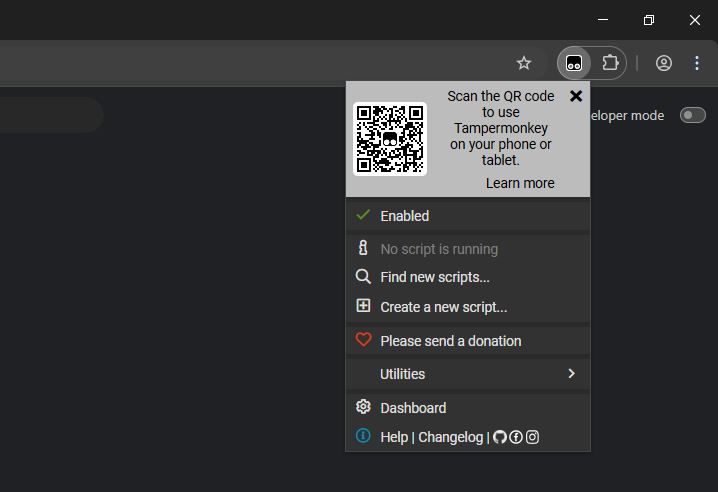
After installing, you should see the Tampermonkey icon in your browser toolbar. Click it to confirm it's enabled.
Video: How to install Tampermonkey (works for all browsers)
Enable Developer Mode & User Scripts
Chrome-based browsers require Developer Mode and User Scripts permission for Tampermonkey to work. This is a one-time setup.
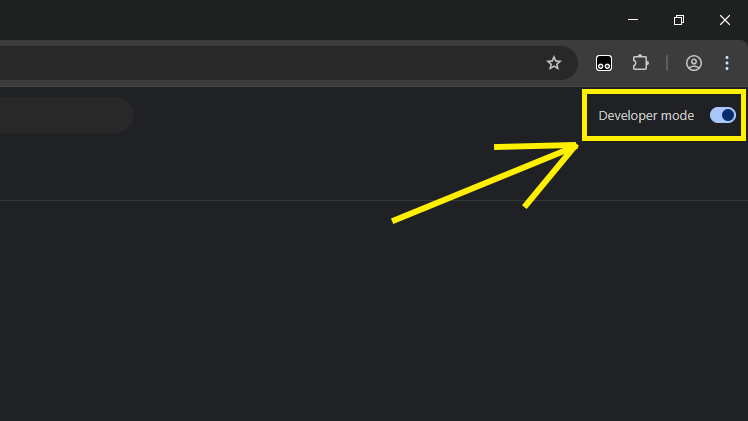
Enable Developer Mode
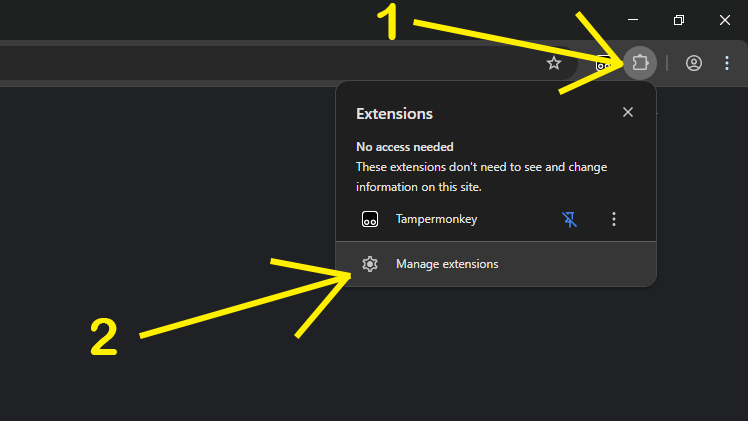
- Click the Extensions puzzle-piece icon in your toolbar
- Click Manage extensions at the bottom
- Toggle Developer mode ON in the top-right corner
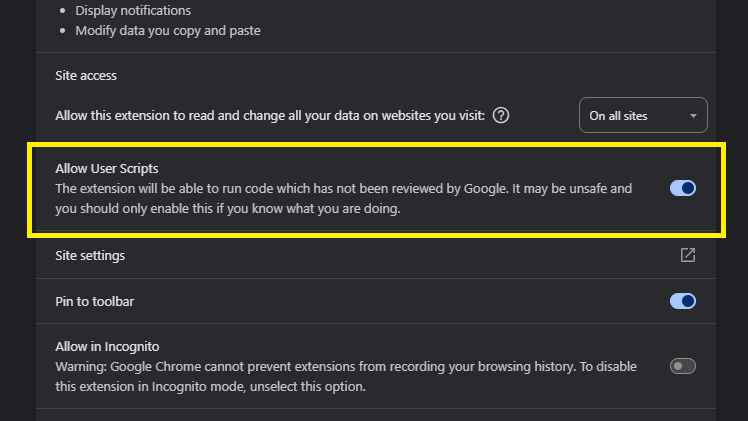
Allow User Scripts
- Find Tampermonkey in your extensions list
- Click Details
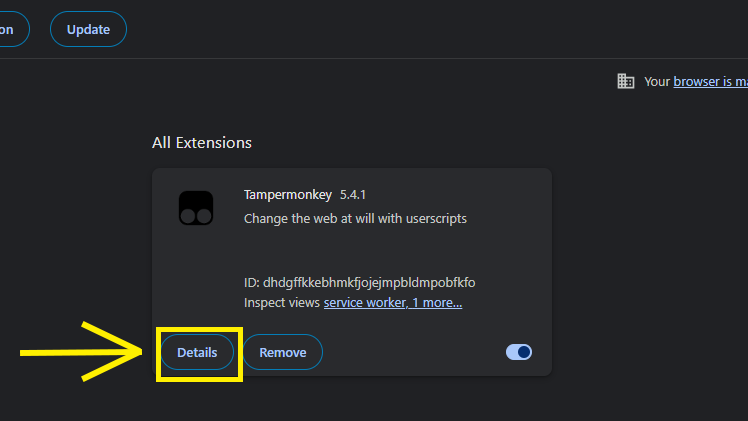
- Scroll down and toggle Allow User Scripts ON
Install the FlashCodes Userscript
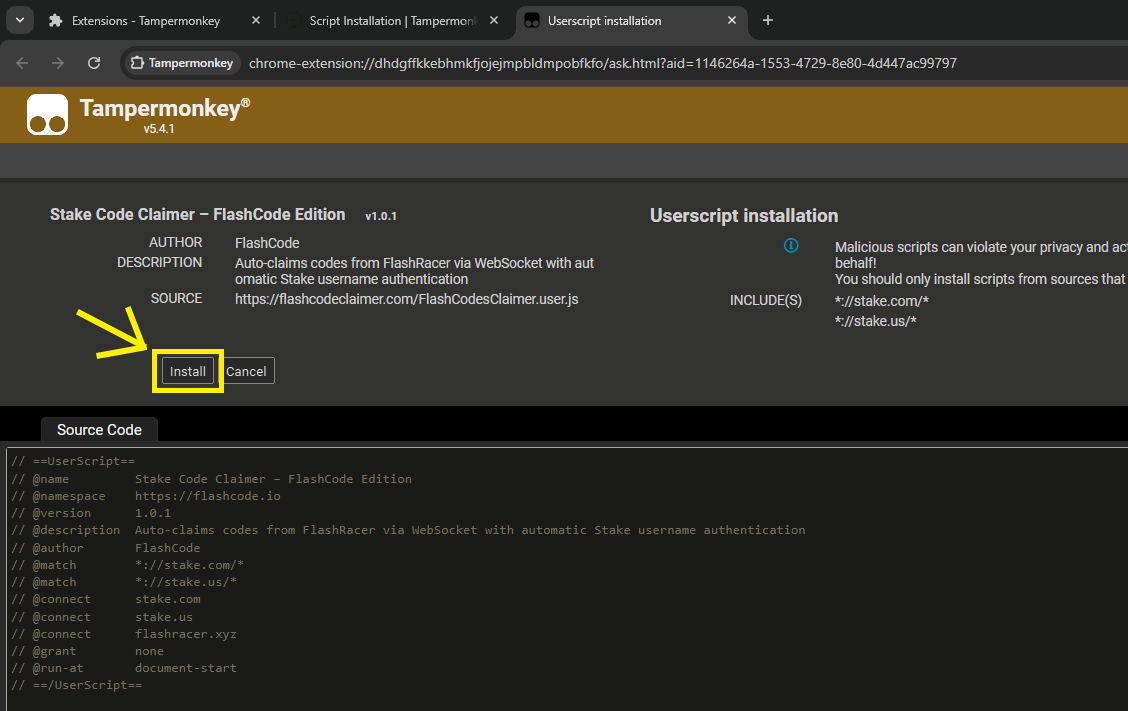
Click the button below to install the FlashCodes userscript. Tampermonkey will open a confirmation dialog — click Install.
- Click the install button above
- Tampermonkey shows the script info — click Install
- The script is now active and running
Connect & Start Claiming
You're almost there. Open Stake.com and FlashCodes will do the rest.
- Go to stake.com (or stake.us) and log in
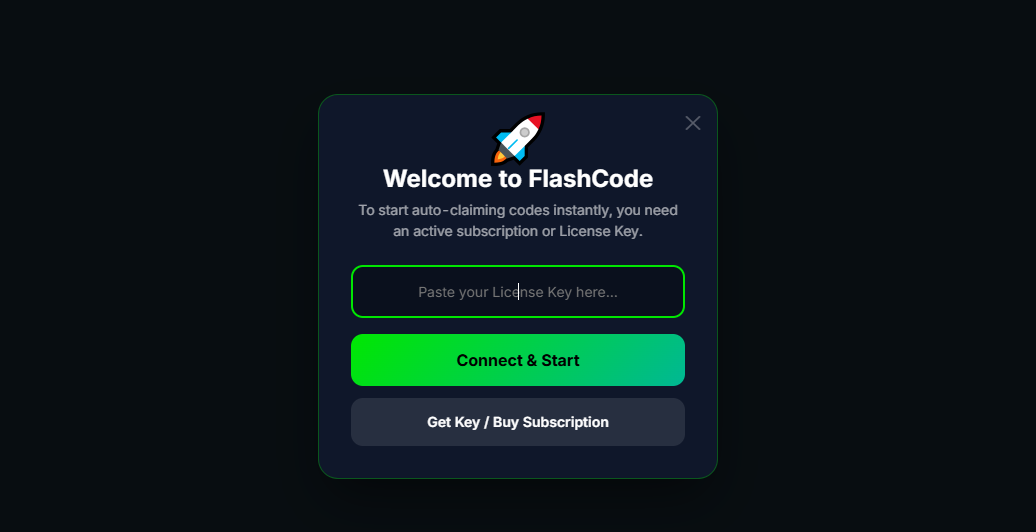
- A Welcome to FlashCode popup will appear automatically
- Paste your license key and click Connect & Start
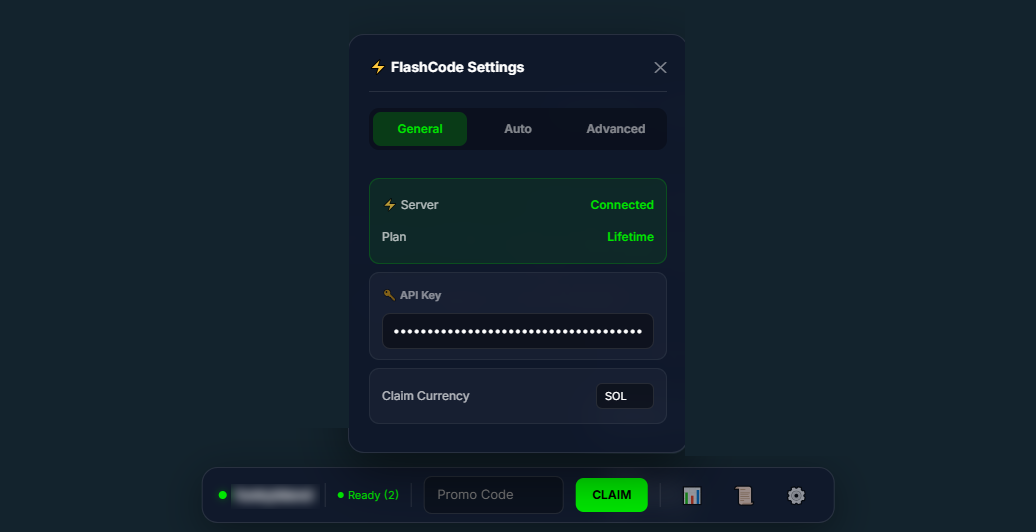
Alternatively, you can enter your key through the Settings panel:
- Click the Settings gear icon in the FlashCodes toolbar at the bottom
- Paste your license key in the "License Key" field
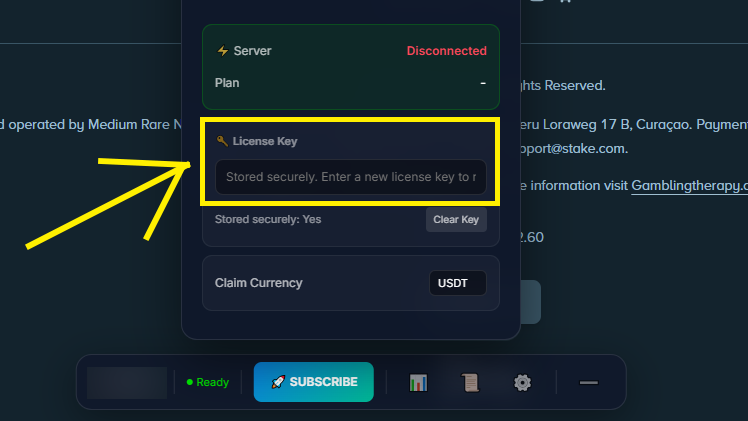
Once connected, the status dot turns green and you'll see your plan info:
Troubleshooting
The FlashCodes toolbar doesn't appear on Stake.com
Make sure Tampermonkey is enabled (click the Tampermonkey icon in your toolbar — it should show the FlashCodes script as active). Try refreshing the page with Ctrl+Shift+R. If it still doesn't appear, disable any other userscript managers (like Greasemonkey or Violentmonkey) as they can conflict.
Status shows "Disconnected" after pasting my license key
Make sure you copied the entire license key with no extra spaces. Try pasting it again. If the problem persists, your key may have expired — check with @FlashRacerBot to verify your subscription status.
Tampermonkey doesn't show the install prompt
This usually means Tampermonkey isn't installed correctly or another extension is blocking it. Try these steps:
1. Verify Tampermonkey is installed and enabled in your browser's extension
settings.
2. Disable other userscript extensions.
3. Try the install link again:
flashcodeclaimer.com/FlashCodesClaimer.user.js
Codes are not being claimed automatically
Check that the FlashCodes toolbar shows a green connection dot. If it's red or gray, re-enter your license key. Also make sure the Stake.com tab is not sleeping — some browsers suspend background tabs. Keep the tab visible or disable memory saver for Stake.com.
Can I use FlashCodes on mobile?
FlashCodes requires a desktop browser with Tampermonkey support. Mobile browsers do not reliably support userscripts and tend to suspend background tabs. For the best experience, use Chrome, Edge, Brave, or Firefox on a desktop or laptop computer.
I need help with something else
Join our support chat on Telegram for direct help: @FlashRacerChat. You can also message the bot directly at @FlashRacerBot.
Ready to Start Claiming?
Plans start at just $5. Set up in 5 minutes.
Get Your Plan